

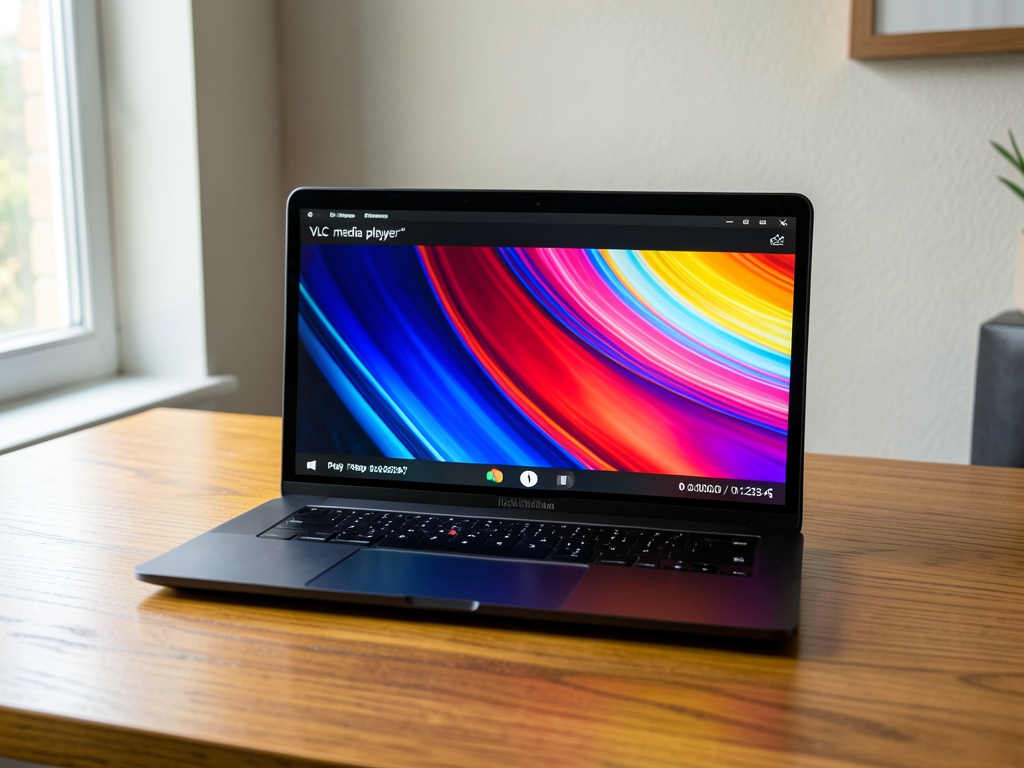
When it comes to digital media playback, finding a reliable application that handles virtually every video and audio format without requiring external codec packs can be a challenge. VLC Media Player, developed by the non-profit organization VideoLAN, has remained a gold standard across computing platforms for decades. Whether you are operating a modern Windows desktop, a macOS laptop, or a Linux workstation, VLC offers a robust, lightweight, and entirely free solution for streaming and watching local files.
Understanding how to download, install, and configure VLC safely ensures that your computer stays secure while granting you immediate access to advanced features such as format conversion, subtitle synchronization, streaming protocols, and screen recording. This comprehensive guide details everything you need to know about getting started with the latest stable version of VLC Media Player.
Overview and Core Features of VLC Media Player
VLC Media Player is a highly portable multimedia player capable of reading a vast array of audio and video compression methods and file formats, including MPEG-4, MPEG-2, MKV, WebM, MP3, FLAC, and uncompressed Blu-ray and DVD ISO images. Unlike many proprietary media players that force users to search the web for missing codecs, VLC includes almost all required decoders natively within its installation package.
Beyond standard playback, the software includes a sophisticated set of productivity and customization tools:
- Universal Format Support: Plays nearly any file type out of the box without throwing unsupported format errors.
- Streaming Capabilities: Functions as a streaming server or client across high-bandwidth IPv4 and IPv6 networks.
- Video and Audio Filters: Adjusts equalizer settings, synchronizes lagging audio tracks, applies visual spatial effects, and enhances weak audio recordings.
- Subtitles Synchronization: Allows manual time-shifting of subtitle files and integrates online subtitle downloading directly into the interface.
- Customizable Skins and Extensions: Supports a wide community of interface skins and Lua-based extension scripts for added functionality.
Info! VLC is completely open-source software distributed under the GNU General Public License, meaning it contains no adware, tracking pixels, or hidden subscription paywalls.
System Requirements and Device Compatibility
Before initiating your download, verifying that your computer meets the minimum hardware and operating system requirements ensures smooth performance during high-definition and 4K playback. VLC is exceptionally well-optimized and demands very few system resources.
| Operating System | Minimum Processor | RAM Required | Storage Space |
|---|---|---|---|
| Windows (11, 10, 8.1, 7) | 1 GHz Intel or AMD x86/x64 | 512 MB RAM | 100 MB free space |
| macOS (Ventura, Sonoma, Sequoia) | Apple Silicon or Intel Processor | 512 MB RAM | 100 MB free space |
| Linux (Ubuntu, Fedora, Mint) | 1 GHz Processor | 512 MB RAM | 100 MB free space |
Users running older hardware architectures can rely on hardware-accelerated decoding features within VLC to offload intensive video processing tasks onto the graphics processing unit (GPU), drastically reducing CPU utilization and saving battery life on portable laptops.
Step-by-Step Installation Instructions
To ensure system security and avoid downloading modified installers bundled with unwanted software, always obtain your setup file directly from the official VideoLAN project servers.
Here is the official installation link to get started:
Follow these structured steps to complete the installation safely:
- Navigate to the official VideoLAN website using your preferred web browser.
- Click the primary dropdown arrow on the download button to select your specific operating system architecture (Windows 64-bit, macOS Apple Silicon, or Linux).
- Save the installer executable to your local downloads directory.
- Double-click the downloaded file and grant administrative permissions when prompted by your operating system.
- Proceed through the setup wizard, accepting the standard open-source license agreement and choosing your preferred file associations.
- Launch the application and begin playing your media files immediately.
Advanced Tools and Media Conversion
One of VLC’s most powerful yet underutilized features is its built-in media converter. Instead of installing third-party conversion utilities to transcode a video for mobile viewing, you can use VLC directly.
By utilizing VLC's conversion utility, users can easily transcode heavy MKV container files into compressed MP4 formats compatible with smartphones, tablets, and web browsers without losing visual fidelity.
To access this feature, navigate to the top menu bar, select Media, and click Convert / Save. From there, add your source file, choose your desired output profile, select a destination folder, and start the conversion process. The application utilizes multi-threaded processing to complete rendering efficiently.
Is VLC Media Player completely free to use?
Yes, VLC Media Player is 100% free open-source software with no hidden fees, trial periods, advertisements, or paid tier upgrades.
Do I need to download external codecs to play MKV or AVI files?
No, VLC comes packaged with almost all common audio and video codecs natively, allowing it to play virtually any file format right after installation.
Can I use VLC to stream videos over my home network?
Yes, VLC includes built-in streaming tools that allow you to broadcast media files across local networks using protocols like HTTP, RTSP, and UDP.
Where is the safest place to download VLC Media Player?
The safest and official source to download VLC is directly from the official VideoLAN project website at videolan.org to avoid bundled adware.
Conclusion
VLC Media Player remains an essential utility for anyone working with digital audio and video files. Its unmatched format compatibility, absence of annoying advertisements, and robust suite of advanced tools make it an indispensable application for personal computers and mobile devices alike. By following official download practices and keeping your software updated, you ensure a smooth, secure, and high-performance multimedia experience for years to come.
