

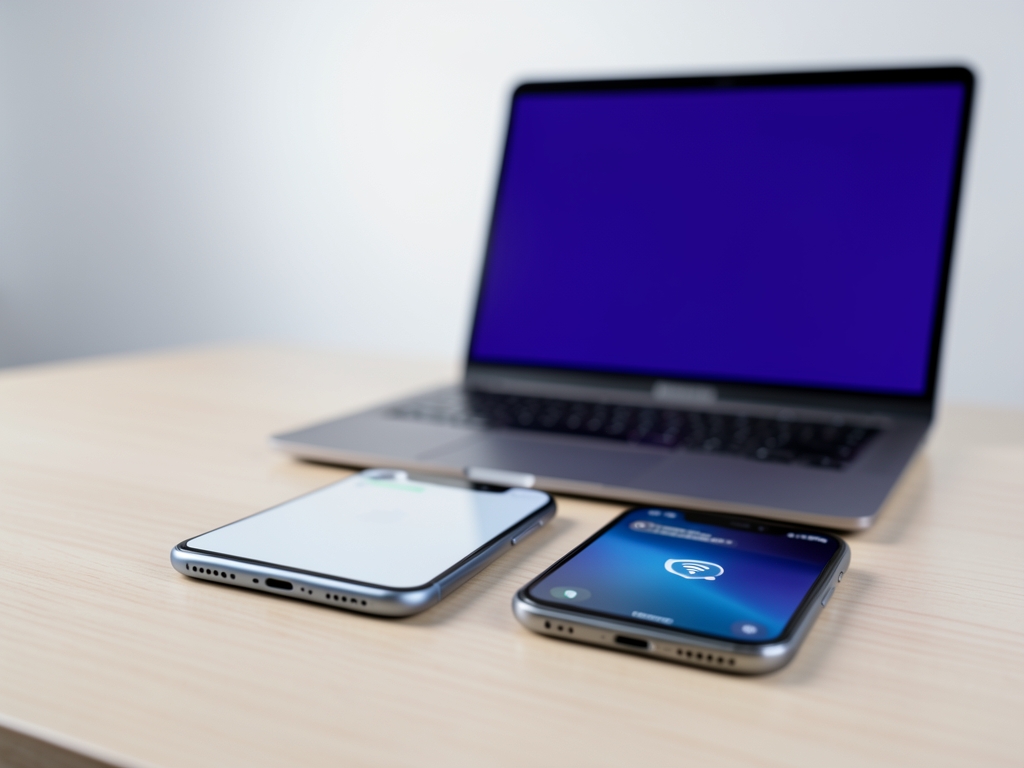
For over a decade, mobile operating systems have evolved along isolated pathways, creating frictionless sharing environments within their own ecosystems while building steep digital walls along their borders. Apple users rely on AirDrop for effortless, instant transfers across iOS and macOS devices, while Android users utilize Quick Share to pass large files between phones, tablets, and Windows PCs. However, transferring high-resolution video, uncompressed RAW photographs, large document archives, or batches of audio files across the boundary between an iPhone and an Android phone remains a persistent source of frustration for millions of mobile users worldwide.
The root cause of this cross-platform friction lies not in hardware limitations, but in proprietary software stacks, differing local network discovery protocols, and distinct file system architectures. While modern smartphones share identical Wi-Fi radios, Bluetooth LE modules, and ultra-wideband chips, their operating systems communicate through incompatible proprietary languages. Fortunately, modern software developments, open-source networking tools, web standards, and the universal adoption of physical USB-C interfaces have unlocked fast, secure, and private transfer methods that bridge the gap between Android and iOS without sacrificing visual quality or privacy.
The Protocol Divide: Why AirDrop and Quick Share Do Not Talk to Each Other
To understand why cross-platform transfer requires specialized approaches, it is helpful to examine how ecosystem-native sharing mechanisms actually work beneath the user interface. Both AirDrop and Quick Share rely on a two-step communication process: out-of-band discovery followed by high-speed local data transport.
- Discovery Phase: AirDrop uses Bluetooth Low Energy (BLE) combined with Apple Wireless Direct Link (AWDL), a proprietary Wi-Fi mesh technology that continuously broadcasts hashed identifiers representing your Apple ID and contacts. Quick Share similarly uses BLE handshakes combined with Google Nearby discovery protocols to identify nearby Android and Windows endpoints.
- Data Transport Phase: Once paired, both protocols establish an ad-hoc peer-to-peer Wi-Fi connection between the two devices. Because the actual data travels directly over high-speed Wi-Fi chips without routing through a local router, transfer speeds can exceed several hundred megabits per second.
Because Apple guards AWDL and iOS system daemons closely, third-party developers cannot natively mirror AirDrop on non-Apple devices without reverse-engineering low-level networking hardware drivers. Consequently, cross-platform tools must leverage open web standards, local local-area-network (LAN) socket connections, or encrypted cloud bridges to accomplish similar high-speed transfers.
Local Wi-Fi Network Transfers: Fast, Private, and Offline
For users who want to transfer gigabytes of media without uploading files to third-party cloud servers or consuming mobile data plans, local network transfer applications represent the gold standard. These tools operate over your home or office Wi-Fi network, discovering endpoints on the same subnet and transferring files directly peer-to-peer.
1. LocalSend: The Gold Standard for Open-Source Sharing
LocalSend has emerged as one of the most reliable multi-platform transfer utilities available for iOS, Android, Windows, macOS, and Linux. Built as a fully open-source application, LocalSend does not depend on external servers, internet connections, or account registrations.
When both devices run the LocalSend app on the same local network, they automatically detect each other using secure REST APIs and multithreaded socket connections. Files transferred through LocalSend are encrypted end-to-end using TLS certificates generated dynamically on the sending device. Because data flows entirely over local local-area network traffic, transfer speeds are limited only by the throughput of your Wi-Fi router, often reaching 30 MB/s to 80 MB/s on modern Wi-Fi 6 environments.
2. PairDrop and Snapdrop: Browser-Based P2P Transfer
If installing dedicated software on both devices is inconvenient—such as when sharing a file with a colleague's phone temporarily—browser-based WebRTC applications offer an elegant alternative. Services like PairDrop utilize WebRTC (Web Real-Time Communication) to negotiate direct browser-to-browser data channels between an iPhone running Safari and an Android device running Chrome.
Info! WebRTC browser transfers establish direct peer-to-peer connections over local network subnets. Once the initial handshake signal is negotiated, file data flows directly between the devices' RAM and memory without passing through external web servers.
Physical Cable Transfers: Utilizing USB-C and Portable Storage
With Apple's transition to USB-C across current iPhone generations, physical cable transfers have become vastly more accessible for cross-platform workflows. Both high-end Android flagships and modern iPhones now feature high-speed USB controllers capable of direct host-to-device communication and external drive mounting.
| Transfer Method | Average Speed | Internet Required? | Max File Size | Privacy Rating |
|---|---|---|---|---|
| LocalSend (Wi-Fi) | 30–80 MB/s | No | Unlimited | Maximum (End-to-End Local) |
| Direct USB-C Cable | 400–1000 MB/s | No | Unlimited | Maximum (Physical Connection) |
| WebRTC (PairDrop) | 20–50 MB/s | Handshake Only | Browser Memory Limit | High (Peer-to-Peer) |
| Cloud Storage Bridge | Varies (ISP Upload) | Yes | Account Storage Limit | Moderate (Third-Party Server) |
To transfer files directly using a physical cable, connect a USB-C to USB-C cable between the iPhone and Android device. On iOS, open the native Files application; on Android, open your preferred file manager (such as Google Files). Depending on OS permissions, one device will mount as an external storage volume or camera storage device (PTP protocol), allowing you to copy photos and documents directly without network configuration.
Alternatively, using a dual-connector USB-C flash drive formatted with the exFAT file system provides a foolproof offline bridge. exFAT is natively read and written by iOS, Android, macOS, and Windows, guaranteeing uncompressed preservation of EXIF metadata, RAW image headers, and high-bitrate video clips.
Preserving Quality: Avoiding Messaging App Compression
When quickly sharing photos or short video clips between iPhone and Android users, many consumers fall back on popular instant messaging applications such as WhatsApp, Telegram, or Signal. While convenient, messaging platforms treat media files differently depending on transfer modes:
- Standard Media Attachments: Instant messaging servers compress images and downsample high-frame-rate videos to conserve bandwidth, frequently stripping HDR color profiles, spatial audio channels, and location metadata.
- Document Sharing Mode: To send uncompressed files through messaging apps, select the file as a Document rather than a Photo/Video. This forces the application to treat the payload as a raw binary file, delivering the original bit-for-bit file without transcoding.
High-Volume Video and Photo Transfer Workflow
When tasked with moving large image libraries or multi-gigabyte 4K video footage from an Android device to an iPhone (or vice versa), follow this optimized step-by-step procedure to ensure maximum transfer speed and data integrity:
- Prepare the Storage File System: If using physical drives, ensure your USB-C storage drive is formatted to
exFATrather than NTFS or APFS, allowing full read and write access on both operating systems. - Establish a Dedicated Local Network Connection: Connect both smartphones to the same 5GHz or 6GHz Wi-Fi network band to minimize channel interference and maximize local socket bandwidth.
- Launch a Local Peer-to-Peer Transfer Tool: Open LocalSend on both the sending and receiving devices, verifying that both hostnames appear active on the network map.
- Verify Transfer Encryption and Select Payload: Select your uncompressed media or document packages, confirm the dynamically generated TLS encryption fingerprints on both displays, and accept the incoming transfer request.
- Confirm Bit-for-Bit Integrity: Once complete, inspect the received files in the iOS Files app or Android File Manager to verify that file sizes, dimensions, and creation dates match the original files exactly.
Security and Privacy Considerations for Mobile Data Transfers
While convenience is crucial, transferring sensitive personal documents or financial records across devices introduces potential security risks if unvetted public networks or unencrypted third-party utilities are used.
When operating on public Wi-Fi networks in airports, hotels, or cafes, avoid using open broadcast network transfer tools that leave your phone perpetually visible to local network scanning tools. Instead, utilize direct physical USB-C storage connections, peer-to-peer encrypted WebRTC links, or encrypted cloud storage solutions protected by multi-factor authentication.
Can I use AirDrop to send files directly from an iPhone to an Android phone?
No, AirDrop relies on Apple's proprietary AWDL (Apple Wireless Direct Link) protocol and iOS system daemons, which are not supported on Android devices. To achieve similar wireless transfers, open-source utilities like LocalSend or browser-based tools like PairDrop should be used instead.
Will transferring video between iPhone and Android reduce the video quality?
Transferring video files using local Wi-Fi utilities (like LocalSend), physical USB-C cables, or cloud links delivers exact bit-for-bit file copies without quality loss. However, sending videos as standard media attachments through SMS, MMS, or instant messaging apps compresses the file and reduces resolution.
What is the fastest offline method to move large files between iOS and Android?
The fastest offline transfer method is connecting a USB-C to USB-C cable directly between both smartphones or using an exFAT-formatted USB-C flash drive. Physical connections bypass Wi-Fi network congestion and can transfer data at speeds exceeding 400 MB/s on USB 3.0 capable hardware.
Is it safe to use web-based sharing tools like PairDrop on public Wi-Fi?
WebRTC-based tools like PairDrop establish encrypted peer-to-peer channels between browsers. While the data stream itself is encrypted using Datagram Transport Layer Security (DTLS), using direct physical cables or a trusted local hot-spot is recommended when handling sensitive personal or enterprise documents on unencrypted public Wi-Fi networks.
Conclusion
Moving away from single-ecosystem dependence no longer requires sacrificing fast, convenient file management. While mobile platform makers maintain proprietary transfer protocols within their own software borders, open web standards, local encrypted socket protocols, and universal hardware connectors have successfully bridged the gap. By leveraging open-source utilities like LocalSend for local wireless sharing, physical exFAT USB-C drives for offline gigabyte-scale transfers, and direct document modes for messaging apps, mobile users can seamlessly move media and files between iPhone and Android with zero quality loss and complete security control.
